Detailed Settings
Complete guide to configuring LKG for Billing to match your business needs.
⚙️ Settings Categories
The Settings section is organized into several categories:
- Profile Settings - Your user account preferences
- Business Settings - Company information and defaults
- Invoice Settings - Invoice numbering, terms, and templates
- Tax Settings - GST/Tax rates and configurations
- Payment Settings - Payment methods and bank accounts
- HSN/SAC Codes - Product classification for GST compliance
- User Management - Team members and permissions (Admin only)
- Integration Settings - Third-party connections
- Security Settings - Password, 2FA, and access controls
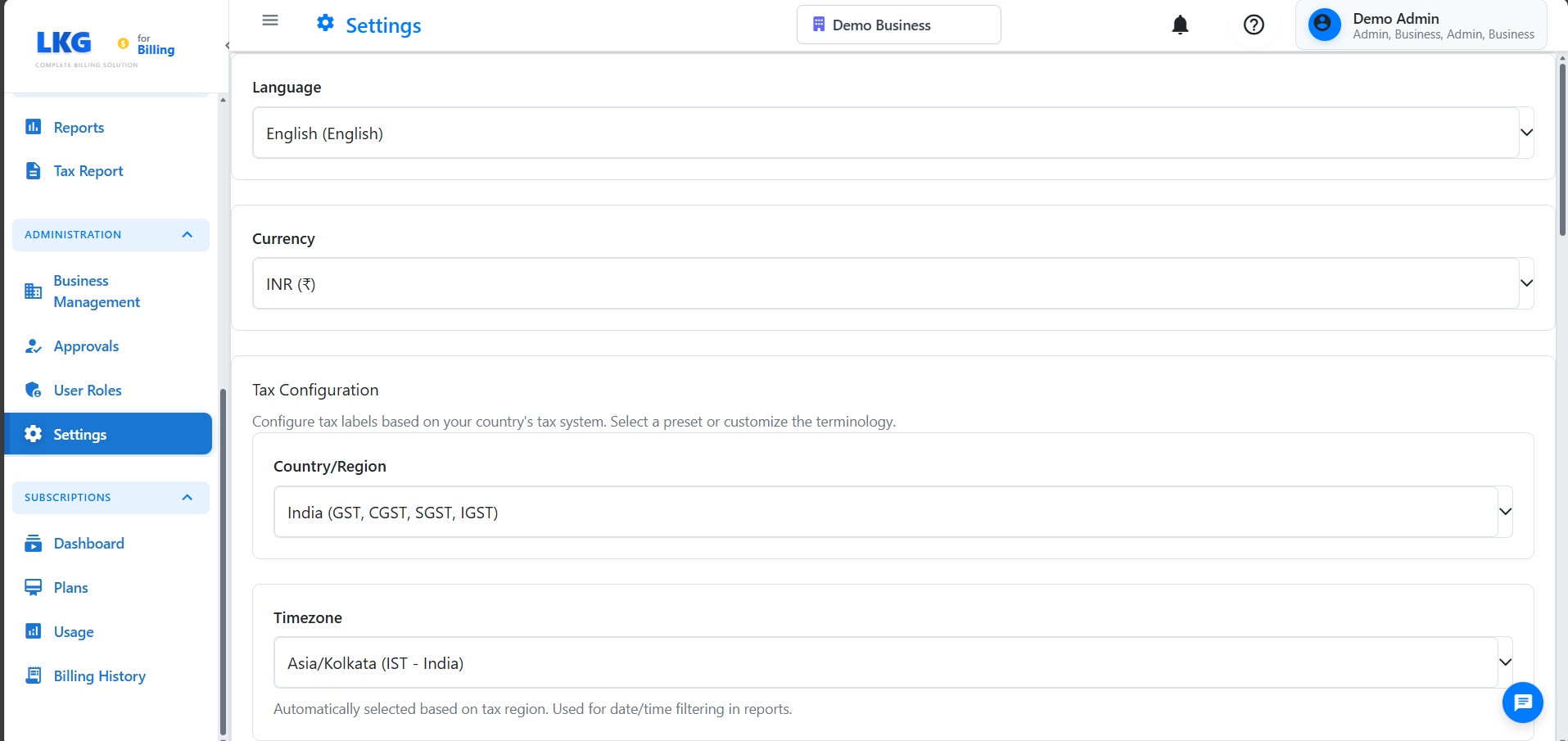
Accessing Settings
Navigation
- Click your profile icon or username in the top right
- Select Settings from the dropdown
- Or click Settings in the main sidebar (if available)
Settings Dashboard
The settings dashboard shows:
- Quick access cards for each settings category
- Recently modified settings
- Recommendations for incomplete setup
- System status and updates
Profile Settings
Personal Information
Update your user profile:
Basic Info:
-
Full Name - Your display name
Example:Rajesh Kumar -
Email Address - Your login email (may be locked)
Example:rajesh@company.com -
Phone Number - Contact number
Example:+91 98765 43210 -
Role - Your user role (view only, set by admin)
Options: Admin, User.
Password Change:
- Click Change Password
- Enter current password
- Enter new password (min 8 characters, mix of letters/numbers/symbols)
- Confirm new password
- Click Update Password
In-App Notifications:
- ✅ Payment received
- ✅ Invoice overdue
- ✅ System updates
- ✅ Comments/mentions
Display Preferences
Customize your interface:
Language:
- English (Default)
- Hindi
- Regional languages (if available)
Date Format:
- DD/MM/YYYY (Indian format)
- MM/DD/YYYY (US format)
- YYYY-MM-DD (ISO format)
Time Format:
- 12-hour (3:30 PM)
- 24-hour (15:30)
Currency Display:
- Symbol first: ₹1,000
- Symbol last: 1,000₹
- With separator: ₹1,000.00
Number Format:
- Indian (1,00,000)
- International (100,000)
Theme:
- Light mode (default)
- Dark mode
- Auto (follows system)
Business Settings
Company Information
Configure your business details for invoices and documents:
Business Details:
-
Company Name (Required)
Example:Acme Technologies Pvt Ltd -
Legal Business Name
Example:Acme Technologies Private Limited -
Business Type
Options: Sole Proprietorship, Partnership, Private Limited, Public Limited, LLP -
Industry
Example:Information Technology,Manufacturing,Retail
Contact Information:
-
Email (appears on invoices)
Example:billing@acmetech.com -
Phone
Example:+91 80 1234 5678 -
Website
Example:www.acmetech.com
Business Address:
-
Address Line 1
Example:123, MG Road -
Address Line 2 (optional)
Example:Koramangala 4th Block -
City
Example:Bangalore -
State/Province
Example:Karnataka -
Postal/ZIP Code
Example:560034 -
Country
Example:India
Tax Registration:
-
GSTIN (Goods and Services Tax Identification Number)
Format:29ABCDE1234F1Z5
Example:29AABCT1332L1ZB -
TAN (Tax Deduction Account Number) - if applicable
Format:ABCD12345E*
Business Defaults
Set default values for new records:
Invoice Defaults:
- Default payment terms: Net 30 days
- Default tax rate: 18% (IGST)
- Invoice prefix: INV-
- Invoice note template
Product Defaults:
- Default unit of measurement: Piece
- Default tax rate: 18%
- Default HSN code (see HSN Settings below)
Customer Defaults:
- Default payment terms: Net 30
- Default currency: INR
- Auto-send invoice on creation: No
Financial Year
Configure fiscal year settings:
Financial Year:
- Start Month: April (common in India)
- End Month: March
- Or: January to December
Year Closing:
- Last closing date: March 31, 2024
- Next closing date: March 31, 2025
- Auto-close year: Yes/No
Invoice Settings
Invoice Numbering
Configure how invoices are numbered:
Numbering Format:
Choose a numbering pattern:
- Sequential: 1, 2, 3, ...
- Prefixed: INV-001, INV-002, ...
- Date-based: INV-2024-001, INV-2024-002
- Custom: BILL-NOV-001, ACME-2024-001
Configuration:
- Prefix (optional):
INV- - Date Format (optional):
YYYY-,YYYY-MM- - Starting Number:
1or001 - Padding: 3 digits (001, 002), 4 digits (0001, 0002)
- Next Invoice Number: (auto-calculated, can override)
Examples:
INV-001, INV-002, INV-003
BILL-2024-001, BILL-2024-002
2024-NOV-0001, 2024-NOV-0002
ACME-001, ACME-002
Tax Settings
Tax Rates
Configure GST and other tax rates:
Indian GST Rates:
- CGST (Central GST): 9%
- SGST (State GST): 9%
- IGST (Integrated GST): 18%
- UTGST (UT GST): Applicable for Union Territories
Standard Rates:
- 0% (Nil Rated)
- 0.25%
- 3%
- 5%
- 12%
- 18% (most common)
- 28%
Add Custom Tax Rate:
- Click Add Tax Rate
- Enter rate name:
GST 18% - Enter percentage:
18 - Select type: CGST+SGST or IGST
- Set as default: Yes/No
- Click Save
Tax Rules
Configure when and how taxes apply:
Intra-State (Same State):
- Apply CGST + SGST
- Example: Karnataka to Karnataka = 9% CGST + 9% SGST = 18% total
Inter-State (Different States):
- Apply IGST
- Example: Karnataka to Maharashtra = 18% IGST
Payment Settings
Payment Methods
Enable and configure payment methods:
Available Methods:
✅ Cash
- No setup required
- Track cash sales
- Manual reconciliation
✅ Bank Transfer (NEFT/RTGS/IMPS)
- Add bank account details
- Enable for invoices
- Require UTR number
✅ UPI/Digital Wallets
- Add UPI ID
- Show QR code on invoice
- Integrate with payment gateway
✅ Credit/Debit Card
- Requires payment gateway
- Merchant fees apply
- Instant confirmation
✅ Cheque/Check
- Enable check payments
✅ Online Payment Gateway
- Integrate Razorpay/Stripe/PayU
- Provide API keys
- Configure webhook
Default Payment Method: Select default for quick entry:
- Bank Transfer (recommended for B2B)
- Cash (for retail)
- UPI (India)
Bank Accounts
Add your bank accounts for payment tracking:
Add Bank Account:
- Click Add Bank Account
- Enter details:
- Bank Name:
HDFC Bank - Account Holder Name:
Acme Technologies Pvt Ltd - Account Number:
12345678901234 - IFSC Code:
HDFC0001234 - Branch:
Koramangala, Bangalore - Account Type: Current, Savings, or Other
- Bank Name:
- Set as default: Yes/No
- Enable for online payments: Yes/No
- Click Save
UPI Details:
Add UPI ID for digital payments:
- UPI ID:
acmetech@hdfcbank - Generate QR Code: Yes
- Show on Invoice: Yes
Bank Details on Invoice:
Choose what to display:
- Show bank name and account number
- Show IFSC code
- Show branch
- Show UPI ID and QR code
HSN/SAC Code Settings
What are HSN/SAC Codes?
HSN (Harmonized System of Nomenclature):
- For goods/products
- 8-digit classification
- Required for GST compliance
SAC (Services Accounting Code):
- For services
- 6-digit classification
- Required for service invoices
Businesses with turnover > ₹5 crore must use 6-digit HSN codes.
Businesses with turnover ₹1.5-5 crore can use 4-digit codes.
Below ₹1.5 crore: 2-digit codes or optional.
HSN Code Master List
Access and configure HSN codes:
View HSN Codes:
- Go to Settings → HSN/SAC Codes
- View list of all HSN codes
- Search by code or description
- Filter by chapter or category
HSN Code Structure:
Example HSN Code: 84713000
- 84: Chapter (Nuclear reactors, boilers, machinery)
- 8471: Heading (Automatic data processing machines)
- 847130: Subheading (Portable digital computers)
- 84713000: Full HSN (Laptops, notebooks)
Adding HSN Codes
Add Custom HSN Code:
- Click Add HSN Code
- Enter code:
84713000 - Enter description:
Laptops and Notebook Computers - Select GST rate:
18% - Set as favorite: Yes (for quick access)
- Click Save
Import HSN Codes:
Import from standard GST HSN list:
- Click Import HSN Codes
- Select GST HSN Master List
- Choose chapters to import (or import all)
- Click Import
- Codes added to your master list
HSN Code Management
When creating products, you can enter HSN/SAC codes manually:
- Go to Products → Create Product
- Enter the HSN code in the HSN Code field
- Common HSN codes for reference:
- 84713000 - Laptops
- 85176200 - Mobile Phones
- Various service codes (SAC)
Ensure you use the correct HSN/SAC code for GST compliance. Refer to the official GST HSN code list.
Default HSN Codes
Set default HSN codes for product types:
By Product Category:
- Electronics → HSN Chapter 84/85
- Textiles → HSN Chapter 50-63
- Food Products → HSN Chapter 01-24
- Services → SAC Codes
Auto-Assign HSN:
Configure auto-assignment:
- Enable Auto-Assign HSN Code
- Rules:
- If product category = Electronics, use HSN 8471
- If product type = Service, use SAC 9983
- Manual override allowed: Yes
SAC Codes for Services
Add service accounting codes:
Common SAC Codes:
- 998314 - Information technology design and development services
- 998315 - Web hosting and related services
- 998316 - Software development services
- 998313 - IT consulting services
- 996511 - Legal services
- 998212 - Accounting and bookkeeping
Add SAC Code:
- Click Add SAC Code
- Enter code:
998314 - Description:
Software Development Services - GST Rate:
18% - Click Save
User Management (Admin Only)
Adding Users
Invite team members:
- Go to Settings → User Management
- Click Invite User
- Enter email:
newuser@company.com - Select role: Admin, Manager, User, Read-Only
- Set permissions (see below)
- Click Send Invitation
- User receives email with setup link
User Roles and Permissions
Admin:
- Full access to all features
- Can manage users
- Can delete paid invoices (with audit)
- Can modify all settings
User:
- Create and edit own records
- Cannot delete finalized invoices
- Limited settings access
- Can view own reports
Security Settings
Password Policy
Configure password requirements:
- Minimum length: 8 characters
- Require uppercase: Yes
- Require numbers: Yes
- Require symbols: Yes
- Cannot reuse last 5 passwords
Next Steps
- Profile Settings - Customize your dashboard
- Invoice Settings - Configure invoice defaults
- Product Management - Use HSN codes in products
- Reports - Leverage your configured settings
Pro Tip: Spend time setting up your HSN code filters properly. This will save significant time when creating products and ensure GST compliance!