Sales Trends Analysis
The Sales Trends Analysis report provides comprehensive insights into your sales performance over time, helping you identify patterns, track growth, and make data-driven business decisions.
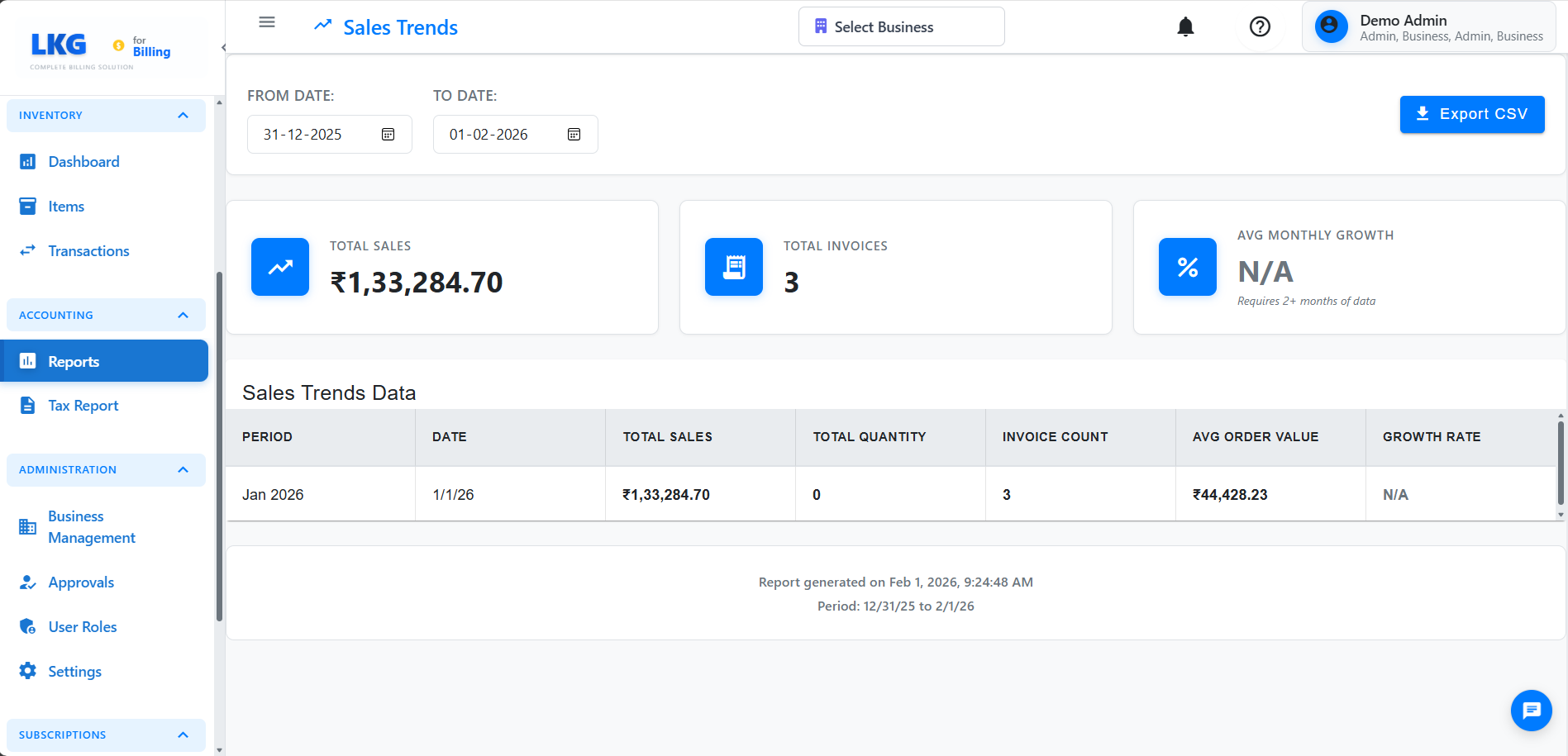
Overview
The Sales Trends report displays:
- Total sales revenue by period
- Sales quantity trends
- Invoice count analysis
- Average order value calculations
- Growth rate comparisons
- Period-over-period performance
Accessing the Report
- Navigate to Accounting → Reports
- Click on Sales Trends
- Select your desired date range
- Click Generate Report
Report Filters
Date Range Selection
- From Date: Starting date for the analysis
- To Date: Ending date for the analysis
- Default Range: Current year (January 1 to today)
For meaningful trend analysis, select a range of at least 3-6 months to identify patterns.
Report Columns
The Sales Trends report displays the following information:
Period
The time period for the data point (daily, weekly, or monthly grouping based on date range selected)
Date
Specific date or date range for the period
Total Sales
Total revenue generated during the period
- Calculated from all paid and partially paid invoices
- Excludes draft and cancelled invoices
- Displayed in your business currency
Total Quantity
Total number of items/units sold during the period
- Sum of all line item quantities from invoices
- Helps track volume trends
Invoice Count
Number of invoices created during the period
- Useful for understanding order frequency
- Compare with total sales to identify bulk vs. individual orders
Average Order Value (AOV)
Average revenue per invoice
- Formula: Total Sales ÷ Invoice Count
- Helps identify changes in customer spending patterns
- Track impact of pricing strategies
Growth Rate
Percentage change compared to previous period
- Shows period-over-period growth or decline
- Positive values indicate growth
- Negative values indicate decline
- Calculated automatically for trend analysis
Understanding the Data
Interpreting Growth Rates
- Positive Growth: Sales increased compared to previous period (greater than 0%)
- Negative Growth: Sales decreased compared to previous period (less than 0%)
- Zero Growth: Sales remained stable (0%)
Average Order Value Insights
- Increasing AOV: Customers buying more per transaction
- Decreasing AOV: Customers making smaller purchases
- Stable AOV: Consistent purchase patterns
Common Use Cases
Monthly Performance Review
- Set date range to current month
- Compare with previous month data
- Identify any significant changes
- Analyze growth rate trends
Seasonal Analysis
- Set date range to cover entire year
- Look for seasonal patterns
- Identify peak and slow periods
- Plan inventory and staffing accordingly
Product Strategy
- Review sales quantity trends
- Correlate with average order value
- Identify popular products or services
- Adjust pricing and promotions
Business Planning
- Analyze historical growth rates
- Project future sales based on trends
- Set realistic revenue targets
- Make informed inventory decisions
Exporting Data
The sales trends data can be exported for further analysis:
- Excel (.xlsx): For detailed analysis in spreadsheet software
- PDF: For printing and presentations
- CSV: For importing into other systems
Best Practices
✅ Do:
- Run reports regularly (weekly/monthly)
- Compare trends across different periods
- Look for patterns and anomalies
- Use data to inform business decisions
- Export data for long-term record keeping
❌ Don't:
- Draw conclusions from very short date ranges
- Ignore unusual spikes or drops (investigate them)
- Compare different business models without context
- Forget to account for seasonality
Troubleshooting
No Data Shown
Problem: Report shows no data
Solution:
- Verify invoices exist in the selected date range
- Check that invoices are paid or partially paid (drafts don't count)
- Ensure you're viewing the correct business
- Try expanding the date range
Unexpected Growth Rates
Problem: Growth rates seem incorrect
Solution:
- Verify previous period had sales data
- Check for one-time large orders that skew the data
- Ensure all invoices are properly dated
- Review for any voided or cancelled invoices
Missing Periods
Problem: Some periods show no data
Solution:
- This is normal if no sales occurred during that period
- Check if business was operational during that time
- Verify invoice creation dates