Creating a New Product
Learn how to add products and services to your LKG for Billing catalog.
➕ Adding a Product
Follow these steps to create a new product or service.
Step 1: Navigate to Products
From the dashboard or main menu, click on Products.
Step 2: Click "Add Product"
Look for the "Add" or "New Product" button (usually with a ➕ icon).
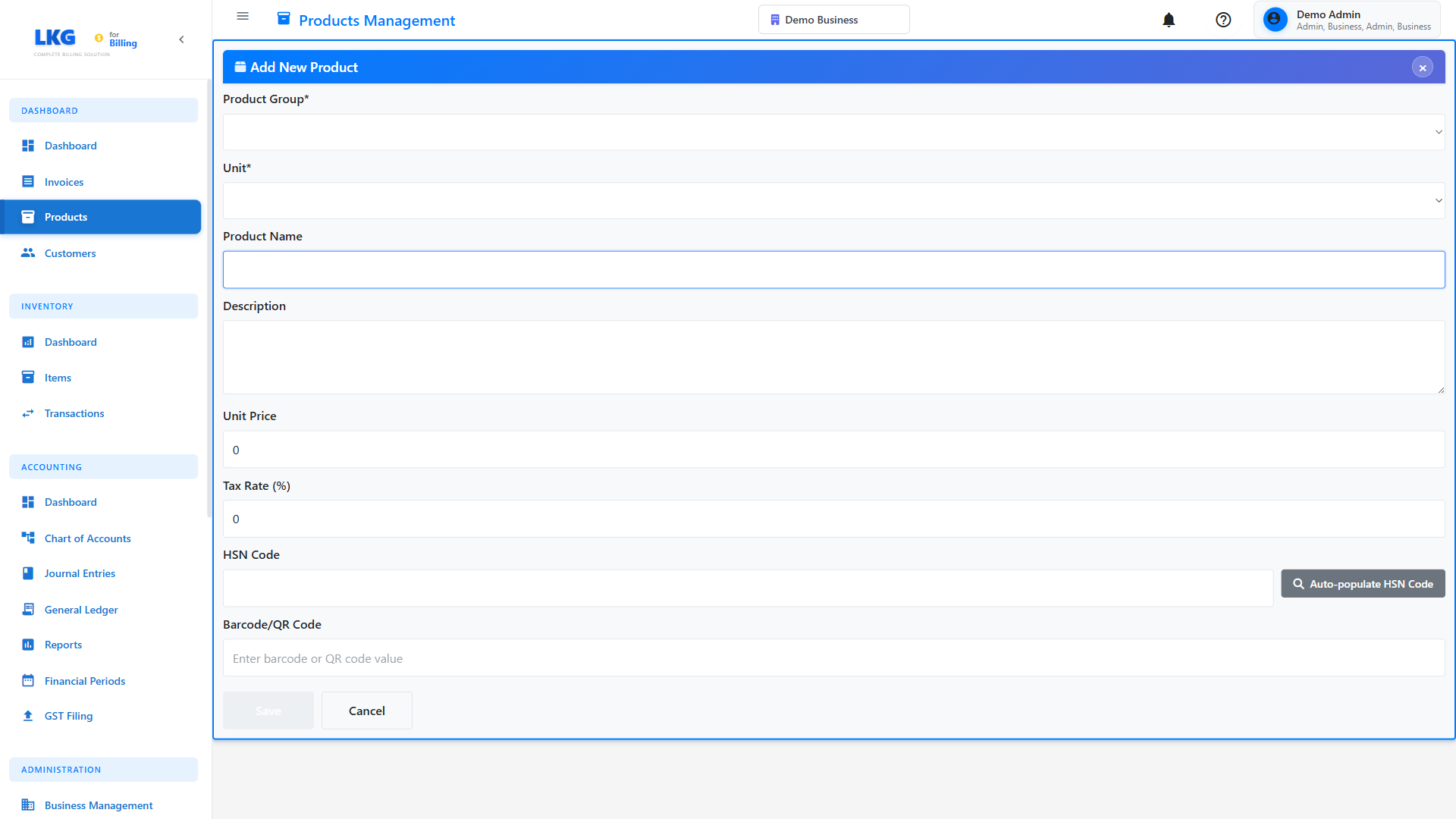
Step 3: Fill in Product Information
Complete the product creation form with the following details:
📝 Required Fields
Product Group*
Select an existing product group or create a new one to categorize your product.
How to use:
- Click "Select Existing" to choose from existing groups
- Click "Create New Group" to add a new category
Common Product Groups:
- Services
- Products
- Subscriptions
- Software
- Hardware
- Consulting
Unit*
The unit of measurement for this product. Select from the dropdown list.
Available Units:
- BAGS
- BALE
- BILLION OF UNITS
- BOTTLES
- BOX
- BUCKLES
- And more...
Product Name
The name of your product or service as it will appear on invoices.
Examples:
Professional IT ConsultingWebsite Design PackageAnnual Software LicenseMonthly Maintenance Service
Use clear, descriptive names that customers will easily understand on invoices.
Description
Detailed information about the product/service.
Example:
Professional IT consulting services including:
- System analysis and design
- Technical architecture planning
- Code review and optimization
- Performance tuning
- Security assessment

Hourly rate with minimum 2-hour engagement.
Unit Price (Selling Price)
The unit price for this product/service.
Examples:
1500.00- Per hour consulting rate25000.00- Website package price999.00- Monthly subscription
- Enter numbers only (no currency symbols)
- Use decimal point for cents/paise:
1500.50 - The currency symbol will be added automatically based on your settings
📋 Optional Fields
MRP (Maximum Retail Price)
The maximum retail price for the product (optional).
When to use:
- For retail products with printed MRP
- For compliance with pricing regulations
- To show discount from MRP on invoices
Example:
- Unit Price:
1200.00 - MRP:
1500.00 - Customer sees discount of
300.00
💼 Sample Product Data
Here are complete examples for practice:
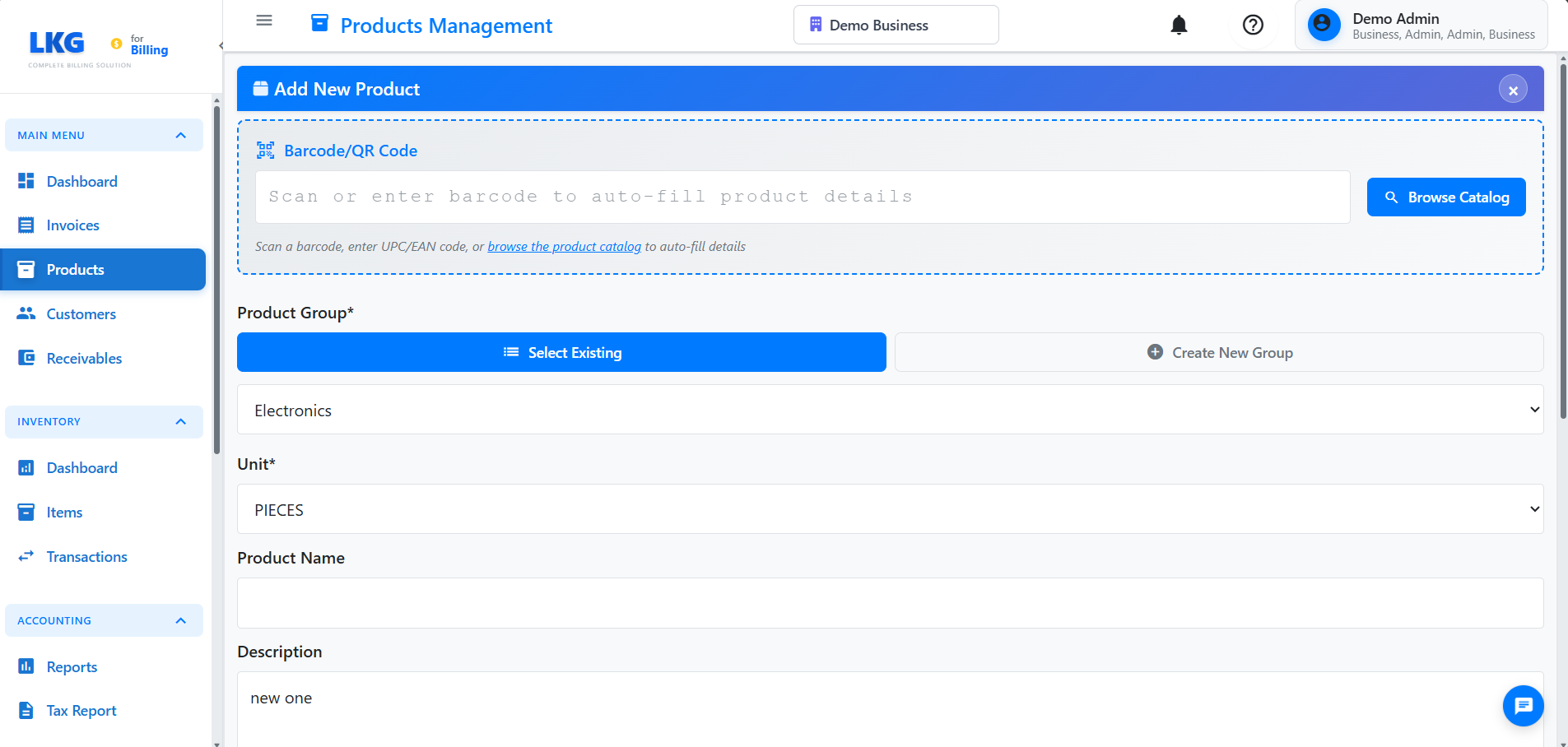
Sample Service:
Product Group: Services
Unit: BAGS
Product Name: NIKE
Description: Professional Bags
Unit Price: 1500
MRP: (optional)
Sample Product:
Product Group: Software
Unit: Laptops
Product Name: Asus
Description: New Laptops
Unit Price: 25000
MRP: 30000
✅ Step 4: Save the Product
Once all information is entered:
- Review the details for accuracy
- Click the "Save" or "Create Product" button
- Wait for the confirmation message
- The new product will appear in your catalog
Look for a green confirmation message like "Product created successfully!"
❌ Common Validation Errors
Product Group Required
Error: "Product group is required" Solution: Select an existing group or create a new one
Unit Required
Error: "Unit is required" Solution: Select a unit of measurement from the dropdown
Product Name Required
Error: "Product name is required" Solution: Enter a descriptive name for the product
Invalid Price
Error: "Please enter a valid price" Solution: Enter a positive number (use decimal point, not comma)
Price Must Be Positive
Error: "Price must be greater than zero" Solution: Enter a positive number for the unit price
🎯 After Creating a Product
Once created, you can:
- Add to Invoice - Use this product when creating invoices
- Edit Details - Update product information anytime
- Track Usage - See which invoices use this product
💡 Best Practices
- Organize with Groups - Use product groups to categorize similar items
- Detailed Descriptions - Include everything customers need to know
- Accurate Pricing - Factor in all costs and your profit margin
- Set Correct Units - Choose appropriate units for each product type
- Use MRP Wisely - Add MRP for retail products to show discounts
🔄 Quick Actions
After creating a product, you might want to:
- Create an Invoice - Use this product in an invoice
- Add More Products - Build your complete catalog
- Product Groups - Organize products better
Product created? Learn how to create invoices next! 👉