Usage Monitoring
Monitor your subscription usage in real-time, track consumption against plan limits, and make informed decisions about your subscription.
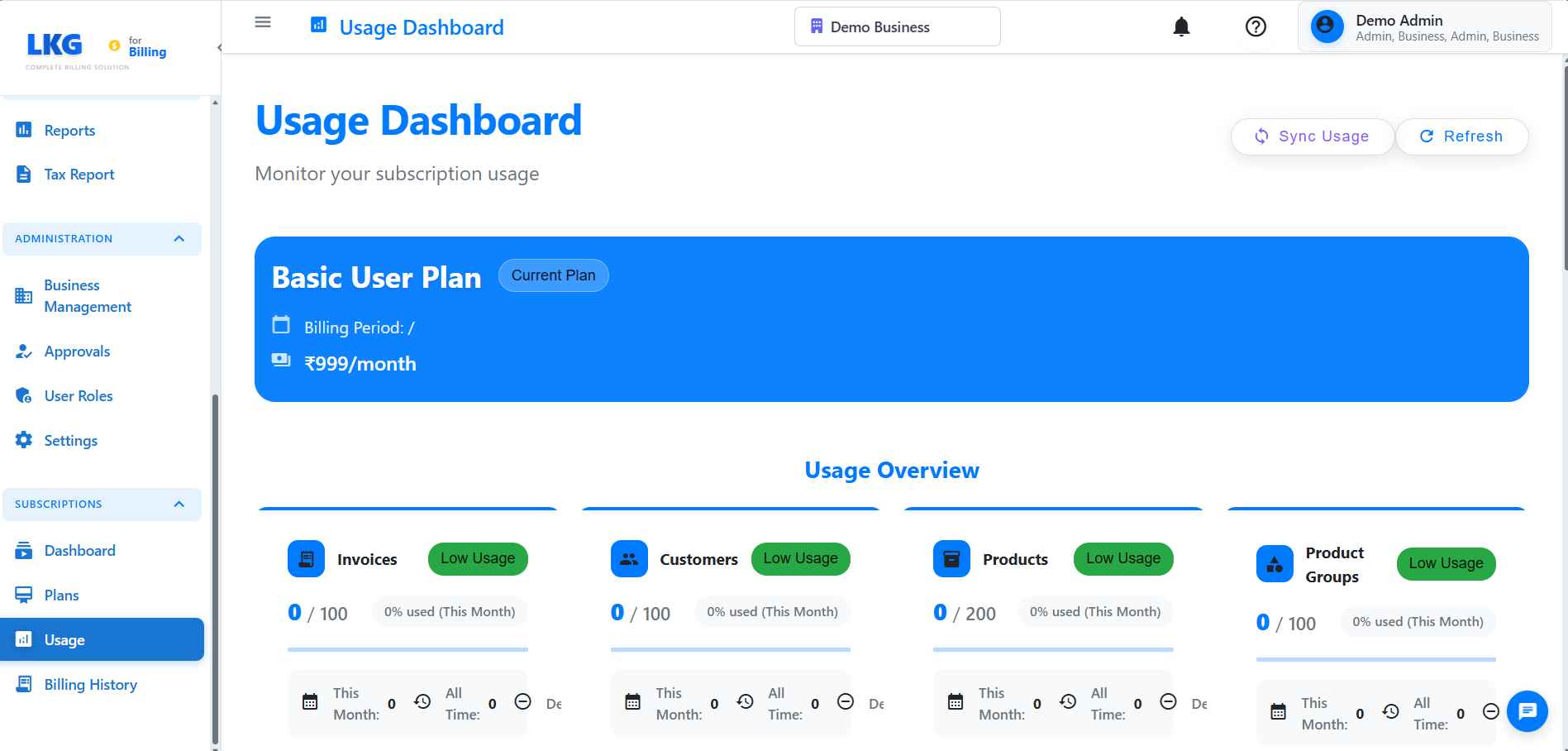
Overview
The Usage page helps you:
- Track current usage against plan limits
- Monitor invoice generation
- View user account consumption
- Identify usage trends
- Plan for upgrades or downgrades
- Avoid exceeding plan limits
Accessing Usage Information
- Navigate to Subscription → Usage from the main menu
- Or click on your profile and select Usage
Usage Metrics
Invoices Generated
Current Month Usage
- Number of invoices created this billing cycle
- Percentage of plan limit used
- Remaining invoices available
Example Display:
Invoices: 45 / 100 (45% used)
Remaining: 55 invoices
The counter resets at the start of each billing cycle (monthly or yearly).
Active Users
Current User Count
- Number of active user accounts
- Plan limit for users
- Available user slots
Example Display:
Users: 3 / 5 (60% used)
Available: 2 user slots
Storage Usage
Data Storage
- Total data stored (invoices, customers, products)
- Storage limit (if applicable)
- Percentage used
Example Display:
Storage: 2.3 GB / 10 GB (23% used)
Remaining: 7.7 GB
API Calls (Enterprise Plan)
API Usage
- Number of API requests made
- Monthly API limit
- Remaining API calls
Example Display:
API Calls: 1,250 / 10,000 (12.5% used)
Remaining: 8,750 calls
Usage Dashboard
Summary Cards
The usage dashboard displays key metrics in easy-to-read cards:
-
Invoices Card
- Current count
- Plan limit
- Progress bar
- Percentage indicator
-
Users Card
- Active users
- User limit
- Available slots
- Add user button
-
Storage Card
- Used storage
- Total storage
- Usage percentage
- Cleanup suggestions
-
Features Card
- Enabled features
- Plan-specific features
- Feature comparison link
Usage Trends
Monthly Trend Chart
- Visual graph of usage over time
- Compare current month to previous months
- Identify peak usage periods
- Forecast future needs
Yearly Overview
- Annual usage summary
- Month-by-month breakdown
- Growth patterns
- Seasonal trends
Usage Alerts
Warning Notifications
You'll receive alerts when:
80% Limit Reached
- Warning notification
- Suggestion to upgrade
- Time remaining in billing cycle
90% Limit Reached
- Urgent notification
- Upgrade recommendation
- Risk of service limitation
100% Limit Reached
- Critical alert
- Feature restrictions may apply
- Immediate upgrade required
If you exceed your plan limits, some features may be temporarily restricted until you upgrade or your billing cycle resets.
Optimizing Usage
Tips to Manage Usage
- Delete Draft Invoices: Remove unused draft invoices to free up quota
- Archive Old Data: Export and archive historical data
- Deactivate Unused Users: Remove inactive user accounts
- Batch Operations: Combine multiple invoices when possible
- Monitor Regularly: Check usage weekly to avoid surprises
When to Upgrade
Consider upgrading if:
- ✅ Consistently using 80%+ of your limit
- ✅ Frequently hitting usage caps
- ✅ Need additional features
- ✅ Business is growing rapidly
- ✅ Require more user accounts
When to Downgrade
Consider downgrading if:
- ✅ Using less than 30% of your limit for 3+ months
- ✅ Reduced business activity
- ✅ Don't need advanced features
- ✅ Cost optimization needed
Usage Reports
Export Usage Data
Download detailed usage reports:
- Click Export Usage Report
- Select date range
- Choose format (PDF, Excel, CSV)
- Download the report
Report Includes:
- Daily usage breakdown
- Feature-wise consumption
- User activity logs
- Trend analysis
- Recommendations
Scheduled Reports
Set up automatic usage reports:
- Weekly email summaries
- Monthly usage reports
- Quarterly trend analysis
- Custom report schedules
Frequently Asked Questions
When does my usage reset?
Usage resets at the start of each billing cycle (the date you subscribed or renewed).
What happens if I exceed my invoice limit?
You'll receive notifications and may need to upgrade to create more invoices.
Can I purchase additional invoices without upgrading?
Currently, you need to upgrade to a higher plan. Contact sales for custom options.
How is storage calculated?
Storage includes all data: invoices, customers, products, attachments, and backups.
Do deleted invoices count toward my limit?
No, only active and draft invoices count. Deleted invoices are removed from your quota.
- Subscription Plans - Compare and change plans
- Billing History - View past invoices and payments
- Account Settings - Manage your account preferences