Editing and Deleting Products
Learn how to update product information and delete products when needed.
✏️ Editing Products
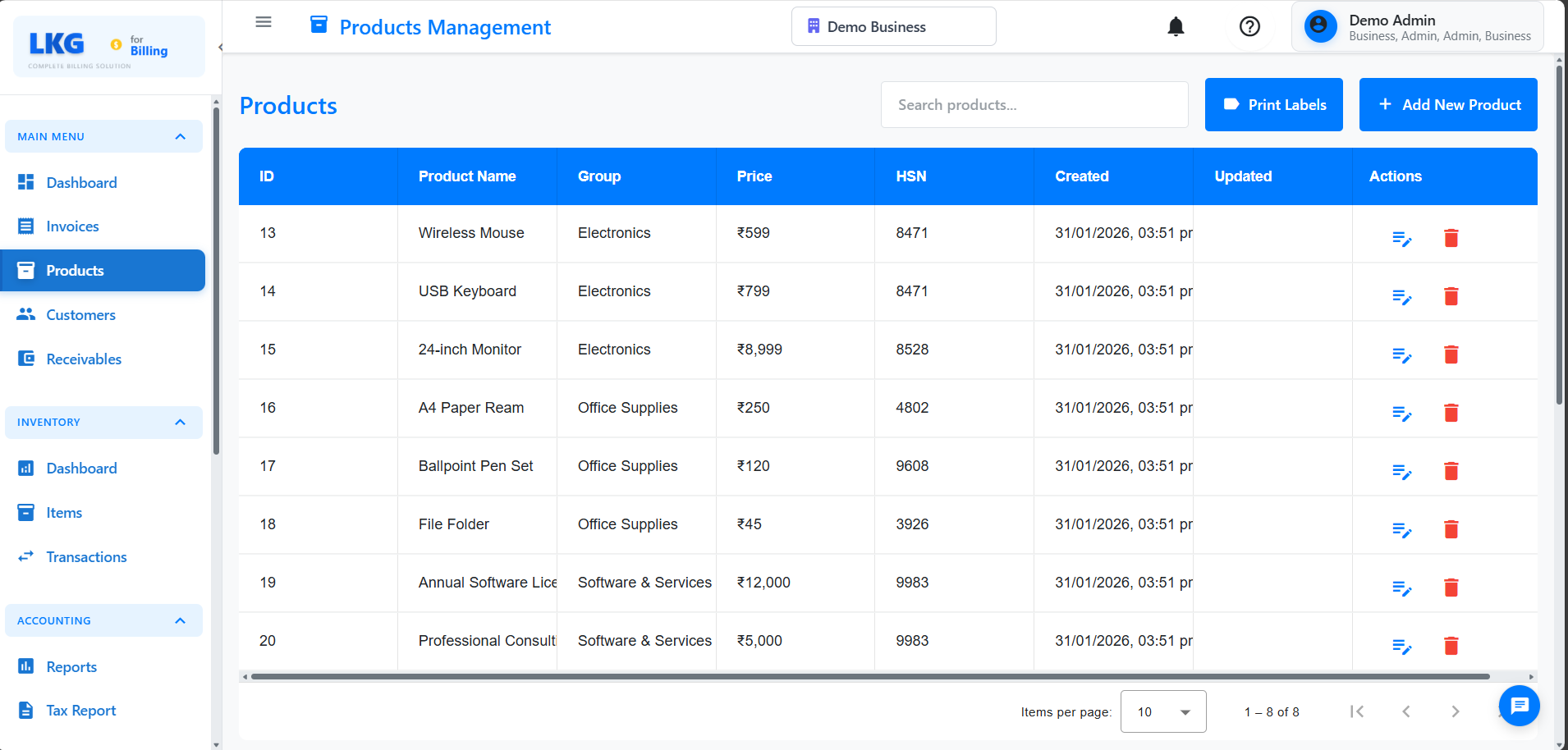
Accessing Product Edit
- Go to Products page
- Find the product in the list
- Click the Edit button (pencil icon)
- Or click Actions (⋮) → Edit
- Product form opens with existing data
Editable Fields
You can edit most product information:
Basic Information:
- Product Name
- Product Code
- Description
- Product Group
- Units
Pricing:
- Base Price
- Tax Rate (GST %)
- Discount %
- Minimum Price
Inventory:
- Track Inventory (Yes/No)
- Current Stock (if tracking enabled)
- Low Stock Alert Level
- Reorder Point
Tax & Compliance:
- HSN Code (manually entered)
- SAC Code (for services)
- Tax Category
- Tax Exemption Status
What You Can Always Edit:
✅ Product name and description
✅ Current stock quantity
What May Be Restricted:
⚠️ HSN code (after used in finalized invoices)
⚠️ Base price (can edit, but doesn't affect existing invoices)
⚠️ Tax rate (new rate applies to future invoices only)
Saving Changes
After editing:
- Review all changes
- Click Save or Update Product
- Product updated across the system
- Existing invoices NOT affected (retain original product data)
- New invoices use updated information
When you edit a product price:
- Existing invoices keep the old price (for audit compliance)
- New invoices use the new price
- Draft invoices may need to be updated manually
🗑️ Deleting Products
When You Can Delete
Products can be deleted under specific conditions:
✅ Can Delete:
- Products never used in invoices
- Products with only draft invoices
❌ Cannot Delete:
- Products in finalized invoices
- Products in paid invoices
- Products with transaction history
- Products referenced in reports
Delete Process
For products with no invoice history:
- Go to Products page
- Find the product to delete
- Click Actions (⋮) → Delete
- Confirm deletion in popup
- Product permanently removed
What Gets Deleted
When you delete a product:
Deleted:
- Product name and description
- Pricing information
- Inventory data (if tracked)
- Draft invoices containing this product (optional)
NOT Deleted:
- Finalized invoices (product info preserved on invoice)
- Paid invoices
- Transaction history (blocks deletion)
- Inventory adjustment history (blocks deletion)
Common Scenarios
Scenario 1: Product Price Changed
Problem: Product price needs to be updated.
Solution:
- Edit the product
- Update the base price
- Save changes
- Note: Existing invoices keep old price
- New invoices use new price
- Update draft invoices manually if needed
Scenario 2: Wrong HSN Code
Problem: HSN code entered incorrectly on product.
Solution:
- Check if product used in finalized invoices
- If NO invoices: Edit and correct HSN code
- If finalized invoices exist:
- Correcting HSN may affect tax compliance
- Add note about HSN correction
- Future invoices use corrected HSN
- Past invoices retain original (for audit)
Product Groups
Impact on Products
When editing/deleting products in a group:
Editing Product Group:
- Can change product's group assignment
- Product moves to new group
- No impact on invoices (retain original group)
Deleting Product Group:
- Cannot delete group with products
- Must remove/reassign products first
- Or mark group as inactive
See Product Groups for details.
HSN Code Management
Editing HSN Codes
HSN codes must be entered manually:
- Edit the product
- Find HSN Code field
- Enter the HSN code (4, 6, or 8 digits)
- System validates format
- Save product
Important:
- No HSN code search/filter available
- Must know correct HSN code
- Refer to GST HSN code list
- Verify code is correct before saving
After Invoices Created:
- Can edit HSN code, but affects only future invoices
- Past invoices retain original HSN (for audit compliance)
- Consider implications before changing
Data Integrity
Related Records Impact
Before deleting a product, check:
Invoices:
- Draft invoices (will be affected)
- Finalized invoices (prevent deletion)
- Paid invoices (prevent deletion)
Inventory:
- Stock adjustments (prevent deletion)
- Stock movement history
- Current stock levels
Reports:
- Product appears in sales reports
- Tax reports reference product
- Deletion creates data gaps
Product Groups:
- Product may be last in group
- Consider group cleanup too
Audit Trail
Product edits and deletions are logged:
Log Entry Includes:
- Who made the change (user name)
- When changed (date and time)
- What changed (field names and values)
- Product details (name, code, ID)
Example:
Product Updated
Date: Nov 20, 2024 3:30 PM
User: Admin User
Product: Wireless Mouse (SKU: WM-001)
Changes:
  - Price: ₹500 → ₹450
  - HSN Code: 8471 → 84713000
Best Practices
Before Editing
- Verify product - Ensure editing the right record
- Check invoice usage - See where product is used
- Document changes - Note significant changes (esp. price, tax)
- Plan impact - Consider effect on drafts and future invoices
Before Deleting
- Verify no invoices - Check product has no transaction history
- Check inventory - Ensure no stock adjustments exist
- Export data - Save product info if needed
Permissions
Who Can Edit/Delete
Admin Users:
- Edit all products
- Delete products (if eligible)
- Override some restrictions (limited)
Regular Users:
- Edit products they created
- Cannot delete products with invoices
Inventory Users:
- Edit stock quantities
- View product details
- Cannot change pricing or tax
Read-Only Users:
- Cannot edit products
- Cannot delete products
- View-only access
Troubleshooting
Cannot Edit Product
Problem: Edit button is grayed out.
Solutions:
- Check you have edit permissions
- Verify product is not locked by another user
- Refresh the page
- Contact administrator
Changes Not Saving
Problem: Product edits not saving.
Solutions:
- Check for validation errors (red highlights)
- Ensure required fields filled
- Verify price is a valid number
- Check HSN code format
- Ensure product code/Id is unique
Cannot Delete Product
Problem: Delete option not available or fails.
Reasons:
- Product used in finalized/paid invoices
- Product has inventory adjustment history
- Product referenced in reports
- Insufficient permissions
Solution: Mark product as Inactive instead.
HSN Code Not Saving
Problem: HSN code field shows error.
Solutions:
- HSN code must be 4, 6, or 8 digits
- No spaces or special characters
- Check if HSN code is valid per GST rules
- Enter manually (no search available)
Next Steps
- Product Overview - Understanding product management
- Create Product - Adding new products
- Product Groups - Organizing products
- Inventory Management - Managing stock
Important: Always use "Inactive" status instead of deletion for products with transaction history. This maintains data integrity and compliance with tax/accounting standards.