Editing and Deleting Inventory Items
Learn how to update inventory items and manage stock adjustments.
✏️ Editing Inventory Items
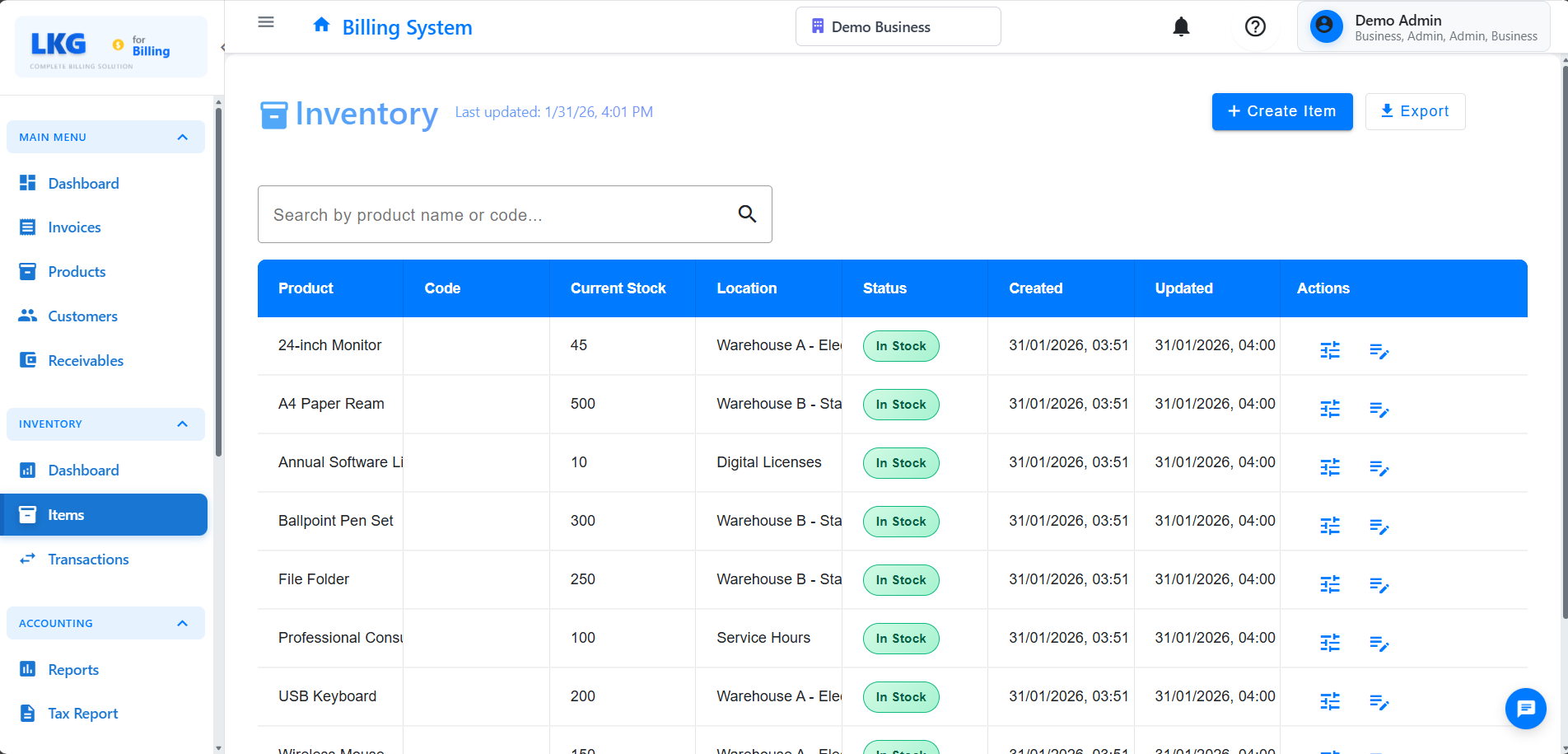
Accessing Inventory Edit
- Go to Inventory page
- Find the inventory item in the list
- Click Edit button (pencil icon)
- Or click Actions (⋮) → Edit
- Inventory item form opens with current data
Editable Fields
You can edit inventory item information:
Product Details:
- Product selection (can change to different product)
- Product name (read-only, from product master)
- Unit of Measurement (from product)
Stock Information:
- Current Stock Quantity (view only - use adjustments to change)
Thresholds:
- Low Stock Alert Level
- Reorder Point
- Reorder Quantity
Tracking:
- Serial Numbers (for serialized items)
- Expiry Date (for perishable items)
- Manufacturing Date
Edit Restrictions
- Current stock cannot be edited directly in inventory item
- Use Stock Adjustments to increase/decrease stock
- This maintains proper audit trail
What You Can Edit:
✅ Location and bin information
✅ Reorder levels and thresholds
✅ Serial numbers and tracking info s
What You CANNOT Edit:
❌ Current stock quantity (use adjustments instead)
❌ Product history in invoices
❌ Past stock movement records
See Stock Adjustments for complete guide.
🗑️ Deleting Inventory Items
When You Can Delete
✅ Can Delete:
- Inventory items never used in invoices
- Inventory items with zero stock and no history
- Test inventory items
- Duplicate entries
❌ Cannot Delete:
- Items with current stock > 0
- Items used in finalized/paid invoices
- Items with adjustment history
- Items with transaction history
Delete Process
For eligible inventory items:
- Go to Inventory page
- Find the item to delete
- Ensure stock is zero
- Click Actions (⋮) → Delete
- Confirm deletion
- Item permanently removed
Cascade Effects
If Item Has Stock:
- Cannot delete until stock is zero
- Must adjust stock to zero first
- Or perform a stock write-off
If Item Has History:
- Cannot delete if adjustments exist
- Cannot delete if used in invoices
- Mark as Inactive instead
Process:
- Go to Inventory → Adjustments
- Select New Adjustment
- Choose product
- Enter quantity change
- Save adjustment
See Stock Adjustments for details.
Common Scenarios
Updating Settings
- Edit inventory item
- Adjust threshold values
- Save changes
- System uses new thresholds immediately
Data Integrity
Related Records Impact
Before deleting inventory item:
Stock Adjustments:
- Any adjustments prevent deletion
- Must have zero history to delete
Invoices:
- Product on finalized invoices prevents deletion
- Inventory tracking preserved on invoices
Reports:
- Inventory reports reference the item
- Deletion creates gaps in historical data
Alerts:
- Low stock alerts based on item
- Deletion removes from monitoring
Audit Trail
Inventory changes are logged:
Edit Log Includes:
- Who edited (user name)
- When edited (date and time)
- What changed (field names and values)
- Old and new values
Example:
Inventory Item Updated
Date: Nov 20, 2024 4:00 PM
User: Admin User
Product: Wireless Mouse (SKU: WM-001)
Changes:
  - Reorder Point: 20 → 30
  - Low Stock Alert: 10 → 15
  - Location: Warehouse A → Warehouse B
Deletion Log:
Inventory Item Deleted
Date: Nov 20, 2024 4:15 PM
User: Admin User
Product: Test Product (id: TEST-001)
Stock at Deletion: 0
Reason: Test data cleanup
Best Practices
Before Editing
- Verify item - Ensure editing correct product
- Check stock - Review current stock levels
- Document changes - Note why you're editing
- Use adjustments - Never edit stock quantity directly
Before Deleting
- Verify zero stock - Ensure no stock exists
- Check history - Ensure no adjustments or invoices
- Export data - Save info if needed for records
- Use inactive - Safer than deletion
Inventory Maintenance
Regular tasks:
- Daily: Monitor low stock alerts
- Weekly: Review reorder points
- Monthly: Perform stock takes, verify counts
- Quarterly: Clean up inactive items
- Annually: Review and archive obsolete items
Permissions
Who Can Edit/Delete
Admin Users:
- Edit all inventory items
- Delete items (if eligible)
- Bulk operations
- Stock adjustments
Inventory Managers:
- Edit inventory items
- Stock adjustments
- Cannot delete items with history
Regular Users:
- View inventory
- Limited edit access
- Cannot perform adjustments
Read-Only Users:
- View only
- No edit or delete permissions
Troubleshooting
Cannot Delete Inventory Item
Stock Not Updating
Problem: Edited item but stock didn't change.
Explanation:
- Stock quantity cannot be edited directly
- Must use Stock Adjustments to change quantity
- This is by design for audit purposes
Solution: Use Inventory → Adjustments to change stock.
Changes Not Saving
Problem: Edits not persisting.
Solutions:
- Check for validation errors
- Ensure required fields filled
- Verify numbers are valid
- Check permissions
- Refresh and try again
Next Steps
- Inventory Overview - Understanding inventory management
- Stock Adjustments - Adjusting stock quantities
- Reports - Inventory reports and analysis
Important: Never edit stock quantities directly. Always use Stock Adjustments to increase or decrease inventory. This maintains a proper audit trail and ensures compliance with accounting standards.