Stock Adjustments
Stock adjustments allow you to correct inventory quantities when physical counts don't match system records. This is essential for maintaining accurate inventory data.
Stock adjustments can only be performed by Admin users to maintain inventory integrity and audit trails.
Making a Stock Adjustment
Step 1: Navigate to Inventory
- Click Inventory in the sidebar
- Select Inventory Items from the submenu
- Find the product you need to adjust
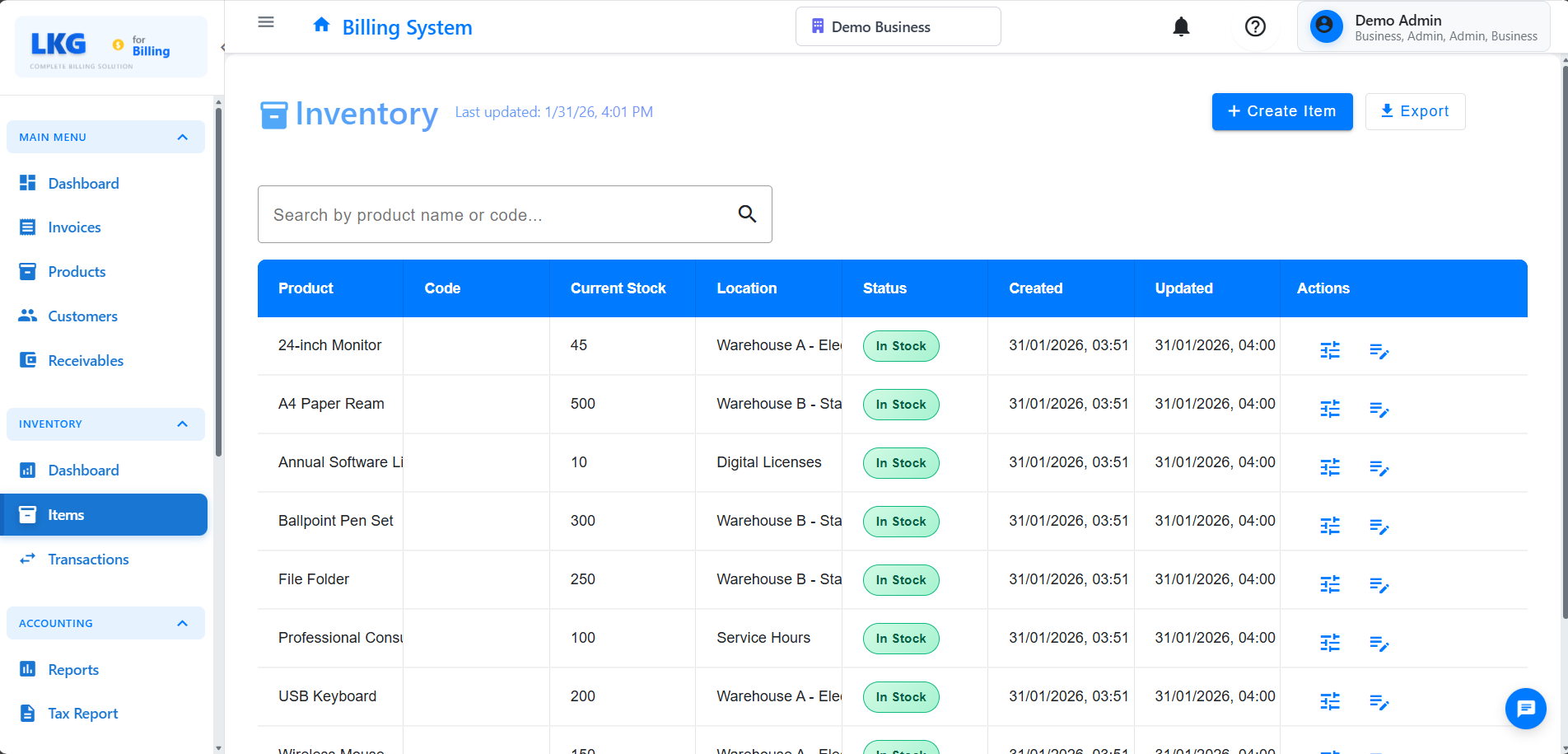
Step 2: Initiate Adjustment
- Click the Actions button (three dots) for the item
- Select Adjust Stock from the menu
- The adjustment dialog will open
Step 3: Enter Adjustment Details
Fill in the following information:
Adjustment Type
Choose the appropriate adjustment type:
- Stock In - Increase inventory (found items, corrections)
Quantity
- Enter the number of units to adjust
- Use positive numbers only
Reason
Select from predefined reasons or enter a custom reason:
Common Reasons for Stock In:
- Physical count - found extra units
- Opening balance
- Supplier correction
- Review the adjustment summary:
- Current stock level
- Adjustment amount
- New stock level after adjustment
- Click Confirm to process the adjustment
- Click Cancel to discard changes
Adjustment Examples
Steps:
- Select Stock In adjustment type
- Enter quantity: 10
- Select reason: Physical count - found extra units
- Add notes: "Found in secondary storage area during reorganization"
- Confirm adjustment
Result: Stock increased by 10 units
Transaction Details
Each adjustment record includes:
- Date and Time - When the adjustment was made
- Product Name - Which item was adjusted
- Type - Stock In or Stock Out
- Quantity - Amount adjusted
- Reason - Why the adjustment was made
- Notes - Additional details
- User - Who made the adjustment
- Reference - System-generated reference number
Best Practices
Troubleshooting
Cannot Make Adjustments
Problem: Adjustment option is not available.
Solutions:
- Verify you are logged in as an Admin user
- Check that inventory tracking is enabled for the product
- Ensure the product is not archived or deleted
Adjustment Not Showing in Stock Level
Problem: Made an adjustment but stock didn't change.
Solutions:
- Refresh the page
- Check transaction history to verify adjustment was recorded
- Verify correct adjustment type was selected (In vs Out)
- Contact support if issue persists
Negative Stock After Adjustment
Problem: Adjustment would result in negative stock.
Solutions:
- Review the intended adjustment
- If stock is actually zero, adjust to zero instead
- Investigate why stock would go negative
- Check for unreported sales or usage
Reports and Analytics
Adjustment Reports
Generate reports to analyze adjustment patterns:
- By Product - Which items require frequent adjustments
- By Reason - Most common adjustment reasons
- By User - Who makes the most adjustments
- By Time Period - Seasonal or monthly trends
Using Reports
- Go to Reports → Inventory Reports
- Select Stock Adjustments Report
- Choose date range and filters
- Export or print for analysis
Next Steps
- View Transaction History - See all inventory movements
- Manage Inventory Items - Update product settings
- Inventory Overview - Monitor overall inventory health
Important: All stock adjustments are permanent and create an audit trail. Always double-check quantities and reasons before confirming adjustments.