Editing and Deleting Customers
Learn how to edit customer information and delete customer records when needed.
✏️ Editing Customers
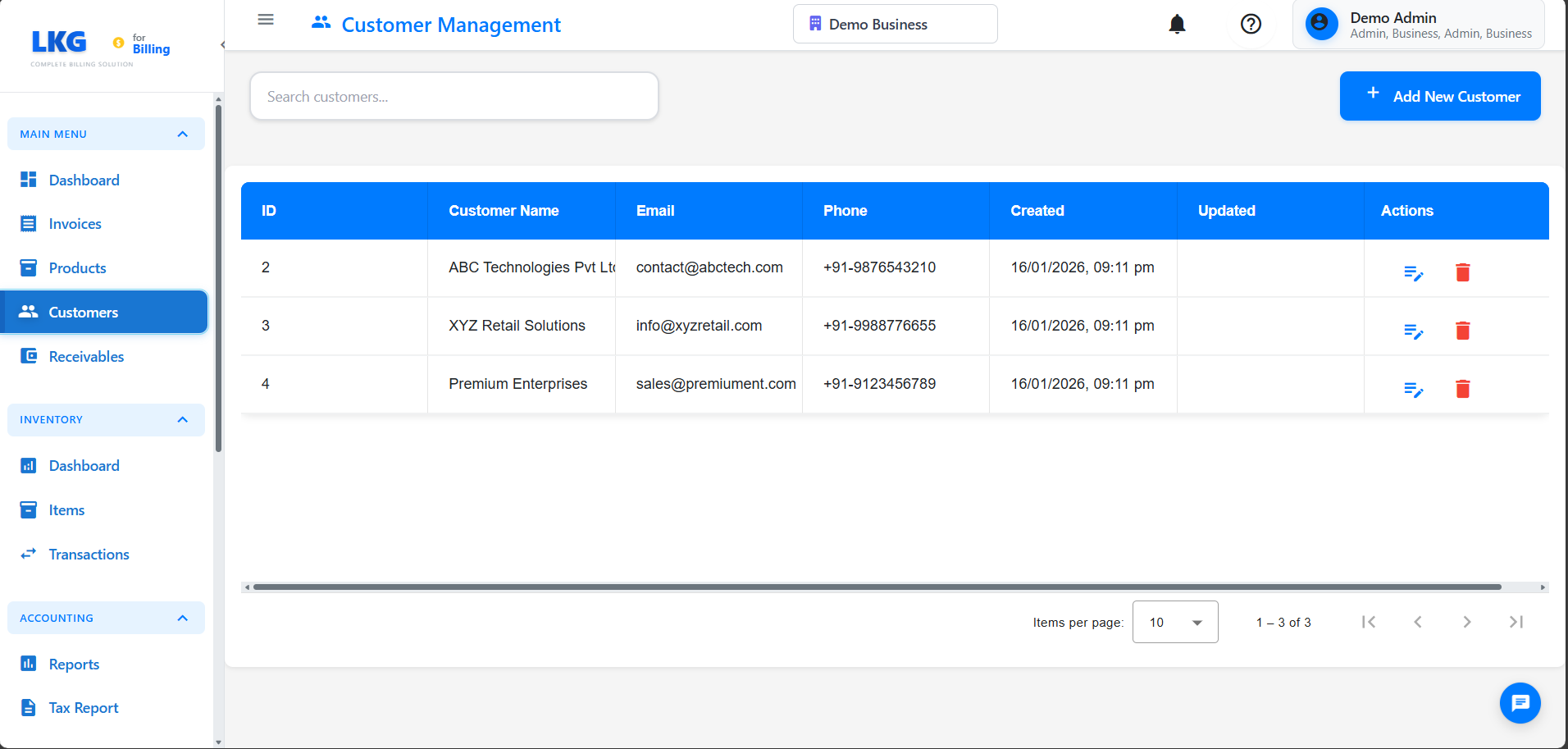
Accessing Customer Edit
- Go to Customers page
- Find the customer in the list
- Click the Edit button (pencil icon) or three-dots menu
- Select Edit Customer
- The customer form opens with existing data
Editable Fields
You can edit all customer information:
Basic Information:
- Customer Name
- Email Address
- Phone Number
- Company Name (if business)
Address:
- Billing Address
- Shipping Address (if different)
- City, State, Postal Code
- Country
Business Details:
- GSTIN (GST Number)
- Contact Person
- Customer Type (Individual/Business)
What You Can Always Edit: ✅ Contact information (name, email, phone) ✅ Address details
What May Be Restricted: ⚠️ GSTIN after invoices are created (affects tax calculations) ⚠️ Customer type after transactions exist
Saving Changes
After editing:
- Review all changes carefully
- Click Save or Update Customer
- Customer information is updated across all records
- Existing invoices retain original customer data (for audit purposes)
- New invoices will use updated information
🗑️ Deleting Customers
When You Can Delete
Customers can be deleted under specific conditions:
✅ Can Delete:
- Customers with no invoices
- Customers with only draft invoices
- Test/duplicate customer records
- Customers created by mistake
❌ Cannot Delete:
- Customers with finalized invoices
- Customers with paid invoices
- Customers with any transaction history
- Customers referenced in reports
Delete Process
For customers with no invoices:
- Go to Customers page
- Find the customer to delete
- Click Actions menu (⋮)
- Select Delete
- Confirm deletion in popup
- Customer is permanently removed
What Gets Deleted
When you delete a customer:
Deleted:
- Customer contact information
- Address details
- Notes and tags
- Draft invoices (if any)
NOT Deleted:
- Finalized invoices (customer info preserved on invoice)
- Payment records
- Transaction history (if customer has transactions, deletion blocked)
Cascade Effects
If customer has draft invoices:
Option 1: Delete Customer + Drafts
- System asks if you want to delete draft invoices too
- Select Yes to remove customer and all drafts
- Select No to cancel deletion
Customer with Invoices
Cannot Delete - What To Do
If customer has invoices and you try to delete:
Error Message:
Cannot delete customer with existing invoices.
Best Practices
Before Editing
- Verify customer - Ensure you're editing the right record
- Check invoices - See what invoices exist
- Note changes - Document significant changes
- Communicate - Inform customer of updated details
Before Deleting
- Verify no invoices - Check customer has no transactions
- Export data - Save customer info if needed
- Check duplicates - Ensure not deleting active customer
- Use inactive instead - Safer than deletion
Troubleshooting
Cannot Edit Customer
Problem: Edit button is grayed out.
Solutions:
- Check you have edit permissions
- Verify customer is not locked by another user
- Refresh the page
- Contact administrator
Changes Not Saving
Problem: Customer edits not saving.
Solutions:
- Check for validation errors (red highlights)
- Ensure required fields filled
- Verify email format is correct
- Check GSTIN format if applicable
Cannot Delete Customer
Problem: Delete option not available or fails.
Reasons:
- Customer has invoices (finalized or paid)
- Customer has payment records
- Customer is referenced in reports
- Insufficient permissions
Solution: Mark customer as Inactive instead of deleting.
Next Steps
- Customer Overview - Understanding customer management
- Create Customer - Adding new customers
- Invoice Management - Creating invoices for customers
Important: Always use "Inactive" status instead of deletion for customers with transaction history. This maintains data integrity and compliance with accounting standards.